Support process#
Overview of the support process#
Support Process Flowchart
See this Miro Board for a flow chart visualization of our suport process.
Here’s a brief overview of our support process[1]:
A Community Representative sends a request to
support@2i2c.orgor through the FreshDesk web widget.This request is triaged by our Support Triager.
We will acknowledge the request within one working day[2].
If the issue is an Incident
We will designate an Incident Responder to orchestrate our efforts around the incident.
We will prioritize resolving it over everything else.
We will provide regular communication to the Community Representative as we investigate and work to resolve the issue.
We will notify them once the incident is resolved.
If the issue is a Change Request, Guidance Request, or Workshop Request
We will incorporate these requests into our work planning pipeline
We will prioritize with our other work based on impact, complexity, and whether we have dedicated funding for this work.
For these types of support, each community has a Support Budget that defines the hours we can sustainably spend on non-incident support requests.
When any support issue is resolved, we will communicate with the Community Representative to confirm with them.
Process for support triage and resolution#
Here is the process that we follow when triaging and resolving support requests.
Triage process#
The goal of the triage phase is to understand the Support Request, decide if it is related to an incident, and choose the appropriate resolution pathway.
This process is carried out in an ongoing basis by the Support Triager and Support Agents.
Monitor our support channels. We use FreshDesk for all support requests, and the Support Triager should regularly keep an eye on this account for new requests. When a new support requests comes in, move to the next step.
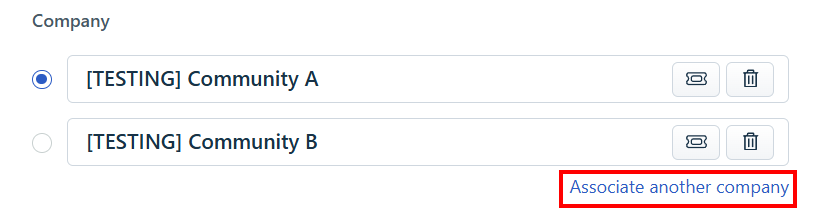
Associate Ticket with a Community. Verify the support ticket is associated with the correct community. See Associating Support Tickets with Communities
Assign a Support Agent to the Ticket. The Support Triager assigns the ticket to a Support Agent based on the considerations:
Who has touched this hub most recently?
Is this a documentation related question?
Who has capacity? Who is already loaded?
Who has the skills? Who could use this as a learning opportunity.
Acknowledge and notify. Notify the Community Representative that the ticket has been assigned to a Support Agent.
The ticket has now been assigned a Support Agent who continues the process
Read and understand. Within one working day[2], read the support request and try to understand what action would resolve it.
Decide if there is an incident. Determine if a request meets the definition of an incident.
Categorize the Support Ticket in FreshDesk.
If an Incident, go to Incident response process.
If not an Incident, go to Non-incident response process.
Non-incident response process#
The goal of the non-incident response process is to bring standardization to our support response. This simple workflow tries to battle the bias towards a reactive response whereas it is also bringing some common patterns so all of our non-incident support responses are cohesive and shared among our support triagers. The current iteration of the workflow states each step and who should be responsible/accountable for the specific step, plus some other clarifications.
When a new ticket lands in Freshdesk under the support group and it is not an incident, we aim to respond within 24 working hours with a suggested next action. The next steps should be followed when resolving a ticket:
Who: Support AgentFirst 24h initial ticket evaluation. In the first 24h a support ticket was opened, you should do an initial evaluation of the ticket and ask the Community Representative about any additional information you may need.
Who: Support AgentSpend 30 minutes trying to resolve. If you believe you can resolve the issue within 30 minutes, try resolving it yourself.
If you resolve the issue, then jump to the “Confirm resolution” step 10.
If you don’t believe you can resolve the issue (or you couldn’t) in 30 minutes, jump to the next step.
Follow the guide at Initial timeboxed (30m) ticket resolution checklist to try and reach to a decision.
Who: Support AgentOpen an issue in the 2i2c/infrastructure repository. If this is an issue that cannot be resolved within 30 minutes, then open a GitHub issue for the team to discuss.
Open a “Freshdesk ticket tracker” type of issue. Use this to describe the ticket and provide as many details as possible about the results obtained in the first 30m investigation (if any).
This issue will then be automatically added to the Product and Services board by the existing automation alongside the the type:
supportand the impact level specified in the form project fields.If the issue has a
criticalimpact (we defer that first evaluation to the support triager), an additional ping to the support Slack channel is needed to boost the signal.What does
criticalmean?We recognize there might be some support-related issues that do not count as incidents, but they need a quick resolution (inside the current sprint window) because they are impacting the execution of desired or existing workflows (degraded experience) for our communities. Examples of those sorts of issues (requests) are:
Image refs updates
Profile updates
User storage limitations
Grafana (and Prometheus) failures
Additionally and depending on the nature AND context of the issue (request):
Access to specific buckets
Authentication and authorization updates
The Support Agent should self-assign the
criticalissue and work on it immediately (this is now outside of the 30-minute timebox described in step 3).If the Support Agent does not have the capacity to resolve the
criticalissue (ie. working on anothercriticalissue, being out of their working time, etc.), they should ping the Engineering Manager (or the delegated person) so they can secure resources to resolve that issue on the fly (see step 8 below).The Support Agent should not work on issues with impact lower than
critical(unless they are assigned as part of the “planned” reactive work in the context of a running sprint (see step 8 below).Who: Support TriagerAdd a reference/link to the created GitHub issue inside the Freshdesk ticket. You can use an internal note or make it public when you communicate back to the Community Representative in step 7. Also, move the status of the ticket to the “Pending” state.
Who: Support AgentCommunicate status. Once we have an issue created to track the next steps, send a message to the Community Representative letting them know about the situation: after some initial investigation and no immediate fix, a follow-up issue was created that will be assigned in the future accordingly to the current prioritization. Also, let them know what the next steps will be. Here’s a template to help guide you:
Hello { NAME }, thanks for sending us your request. We've concluded that
this is not related to an outage or diminished service, so we'll incorporate
this request into our team's work planning process. We'll send an update
when we've got a plan for completing this request.
Who: Support AgentResolve the request. When some engineer is assigned to a support-related GH issue in the context of a sprint, we move ahead with the investigation/resolution for one (1) sprint. If we failed to find a fix during that time, we communicate back that state in the Freshdesk ticket and resolve it.
Exceptional tickets might need more than one sprint. These tickets need to be explicitly approved as exceptions.
Who: Support Agent
Confirm resolution. Once we have resolved a support request, send a message to the Community Representative to confirm that we believe it is resolved. In FreshDesk, mark the incident as Resolved.
Marking a ticket as Resolved will automatically trigger a Freshdesk Satisfaction Survey. If sending out this survey is not applicable, mark the ticket as Closed instead.
Who: Support TriagerClose the request. If the Community Representative confirms that their request has been fulfilled, consider this request closed. In FreshDesk, mark the incident as Closed.
Reopen the request. If the Community Representative reports that their request has not be fulfilled, consider this request open and repeat the Support Procss. In FreshDesk, mark the incident as Open.
Workshop Request#
Requests for set up of workshops (including changing shared passwords) are not assigned a Support Agent and need to be scheduled for future action.
Create GitHub issue in the Infrastructure repository
Acknowledge the Workshop Request and link to the GitHub issue.
GitHub issue gets planned in iteration planning
Freshdesk ticket marked as Pending
When the request has been completed, mark the ticket as resolved.
Prioritizing non-incident support requests#
For support requests that are not related to Incidents, we have more flexibility in when to do the work. We cannot sustainably prioritize all support requests over our other work, so here is a rough prioritization order to follow:
Requests that come with dedicated funding.
Requests that impact many communities.
Requests that align with our pre-existing goals.
Requests that align with an upstream open source project’s goals.
Requests from communities that haven’t used much Support Budget.
Requests that have a high-impact on a single community.
Our other work items
Requests from communities that have no more Support Budget.
Ask the PMs
We have a few roles that are particularly useful for triaging and prioritizing our work items.
Our
Project Managershould have visibility over everybody’s workload, and helps us prioritize work during sprints.Our Product and Community Lead should understand which work items will be most impactful across our communities. (we currently do not have anybody serving in this role, but will soon!)
When deciding how to prioritize a Change Request, ask for guidance from these two team members.
Associating Support Tickets with Communities#
Who: Support TriagerSupport Tickets are associated with Commuities based on the identity of the Ticket Requestor.
Who: Support TriagerWe also need determine if the person initiating the support ticket is authorized to do actually do so. While we may interact with many folks from a community during resolution of a ticket, we constrain who can initiate a ticket to Community Representatives only. This prevents our support staff from being overwhelmed by tickets that need to be handled elsewhere. If the person initiating the ticket is not a community representative, the support steward should cc the community representatives, and ask for approval. The support steward may choose to use the following email template:
Hello
, I’m cc’ing you on this support ticket we received from a member of your community. To streamline our support process, 2i2c is accepting support requests only from communtity representatives. Can you read through the request, and let us know how you wish to proceed?
Thanks.
The source of truth for Community Representatives is the FreshDesk “Company” entry that is used to represent each of our Communities. Community Representatives are shown adjacent to each FreshDesk ticket:
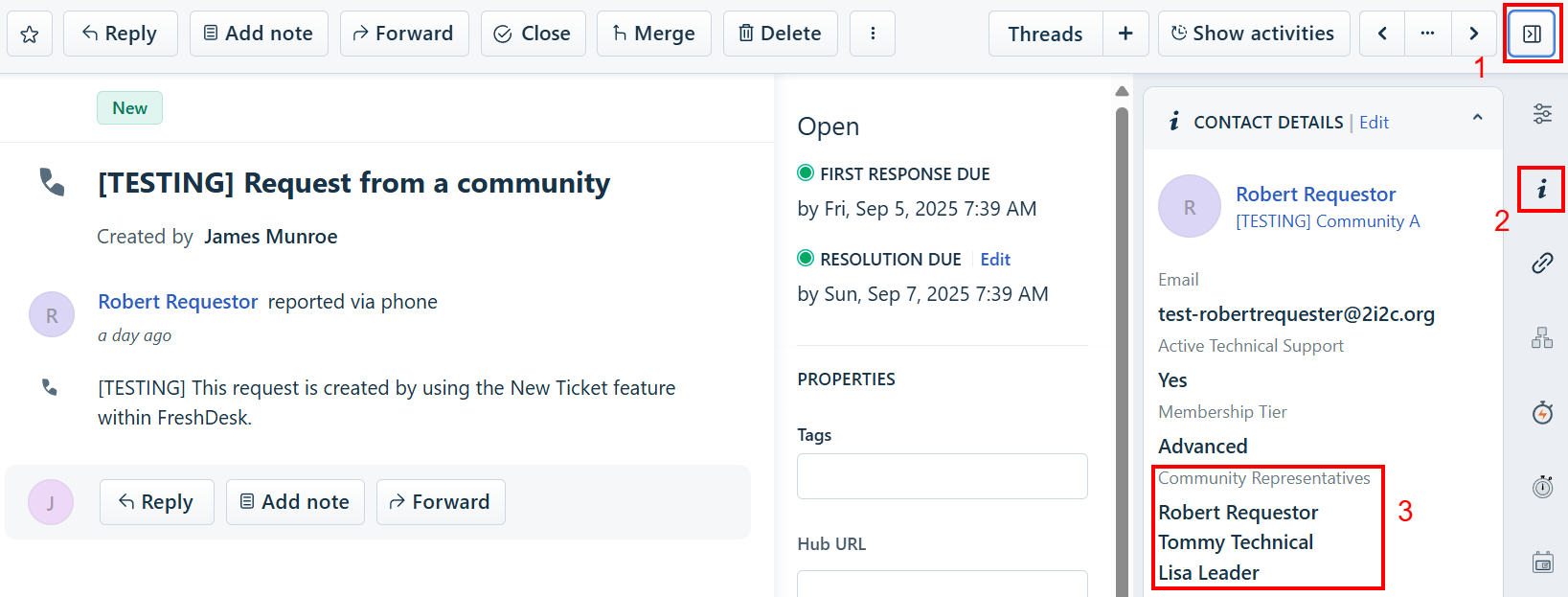
Freshdesk Communities and Contacts
FreshDesk has the concept of a ‘Company’ that can be associated independently with both tickets and contacts. We interpret the ‘Company’ in Freshdesk to mean the 2i2c Community that is being served.
When a ticket comes into FreshDesk is automatically associated with the Community based on the ‘Company’ of the Community Representative submitting the ticket.
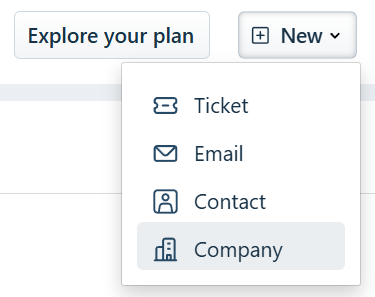
When a new Community is being onboarding, create a new “company” in FreshDesk:
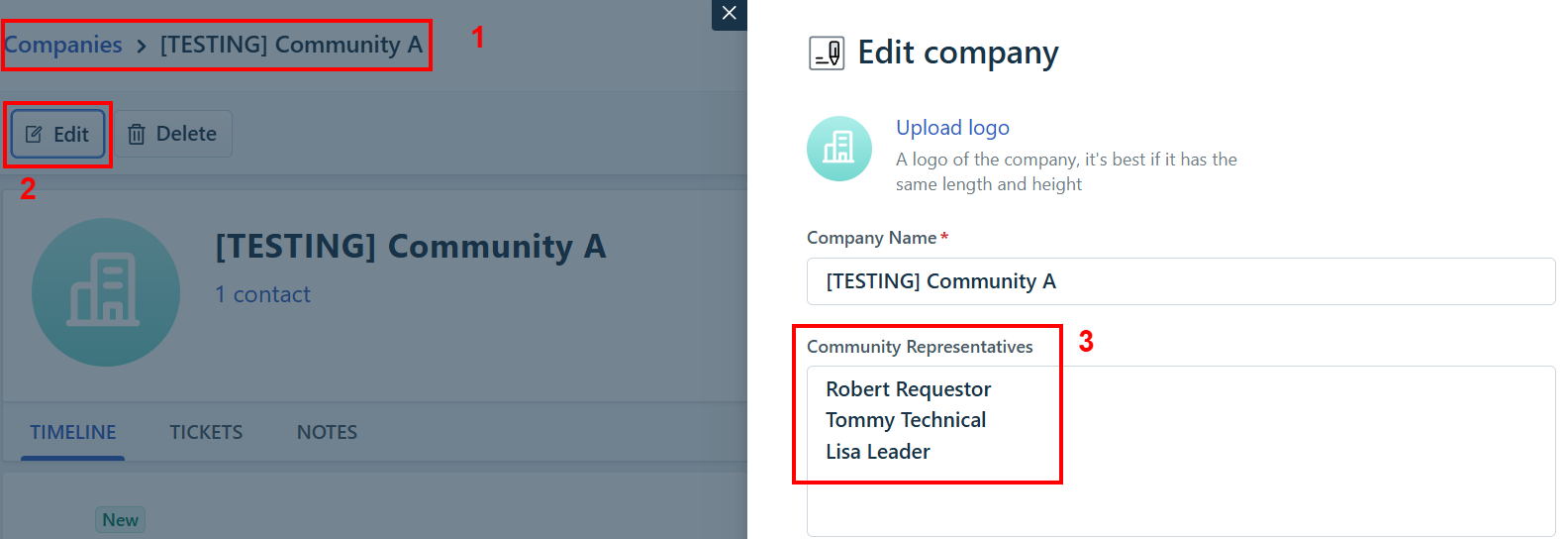
To update the list of Community Representatives, edit the Company:
For each Community Representative, create a new Contact entry. Contacts may be affliated with multiple Communities if required: